
Know which Google Docs experience you mean.
Google's official help for dark theme currently focuses on the Google Docs, Sheets, and Slides mobile apps. On a desktop browser, the web editor does not offer the same single “dark theme” switch for every part of the experience. That is why people looking for Google Docs dark mode in Chrome often use a page-level extension for the editor surface.
The difference matters: a Chrome extension can style the webpage you are viewing, but it does not change the content stored in your document or turn the document into a different file format.
Safety first: Before applying any visual filter to a document, check a few headings, colored highlights, tables, images, and links. If color carries meaning in your work, keep a per-site setting so you can turn the treatment off quickly.
Set up a calmer Google Docs page.
- Install Dusk for Chrome from the Chrome Web Store and pin it to the browser toolbar.
- Open a Google Doc in a normal browser tab. The extension works on supported webpages, not Chrome's internal pages.
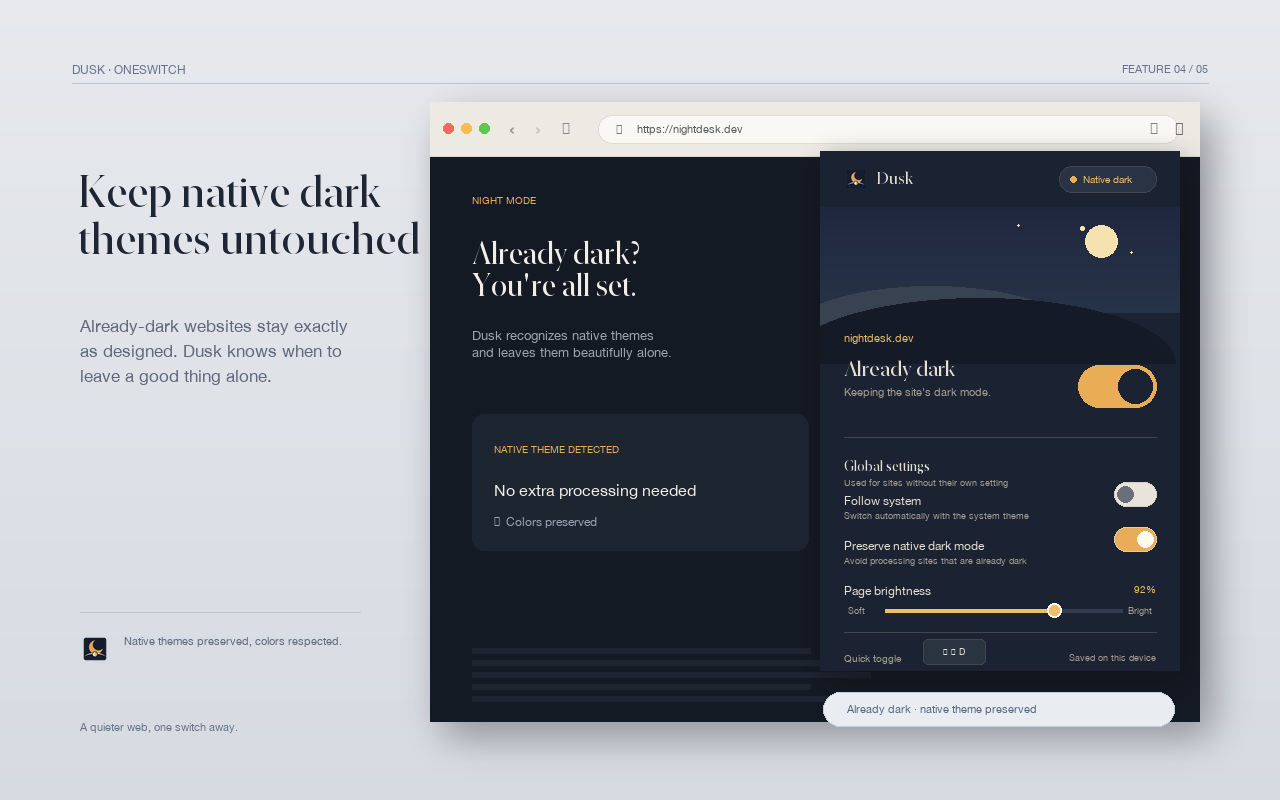
- Toggle the current site from the Dusk popup. This saves a per-site preference for the Google Docs host instead of changing every website.
- Adjust brightness until the editor surface is comfortable. Use the smallest change that removes the glare.
After the first setup, open a document with the same kinds of elements you use every day. Look at the page background, text contrast, comments, menus, and any embedded media. If the site's own behavior is better, restore the global setting and keep Google Docs in its native presentation.
Treat the document canvas as content.
Documents are not ordinary article pages. The white page, colored text, highlight colors, and images can be part of the meaning. A good dark mode extension should avoid blindly inverting images and should handle document-like surfaces separately where possible.
- Check black text, light text, and colored headings.
- Inspect tables, charts, drawings, and inserted images.
- Verify that links and comments are still easy to distinguish.
- Open print preview before sending a final document to a printer or PDF workflow.
Dark mode changes the view in your browser. It should not be treated as a document editing operation. Your collaborators will not automatically see the same local browser presentation just because you enabled it.
Keep the workflow predictable.
When the document needs to be reviewed, printed, or shared, temporarily turn off the current-site dark mode and verify the native view. Print output, browser zoom, extensions, and Google Docs updates can each affect the final result. A simple reversible toggle is more useful than a setting that you cannot explain later.
For privacy, check the extension's permissions and storage behavior. Dusk describes its settings as local-first and does not require an account. Its security and privacy policy explains the browser access needed for the visual effect and what is not sent to a server.