
First, separate the browser from the page.
Chrome's own dark theme is useful: it can darken parts of the browser interface, including the toolbar, settings, and some browser surfaces. It does not automatically turn every webpage into a dark website. A news site, web app, or document editor may still decide how its own HTML and CSS look.
That distinction explains why searching for “dark mode for Chrome” can lead to two different solutions. A browser theme changes Chrome's frame. A website dark mode extension works inside supported webpages and applies a visual layer to the page itself.
Good to know: Dark mode is a presentation preference, not a promise that every page will look identical. Protected browser pages, the Chrome Web Store, and some embedded surfaces can limit what an extension is allowed to change.
What a dark mode extension adds.
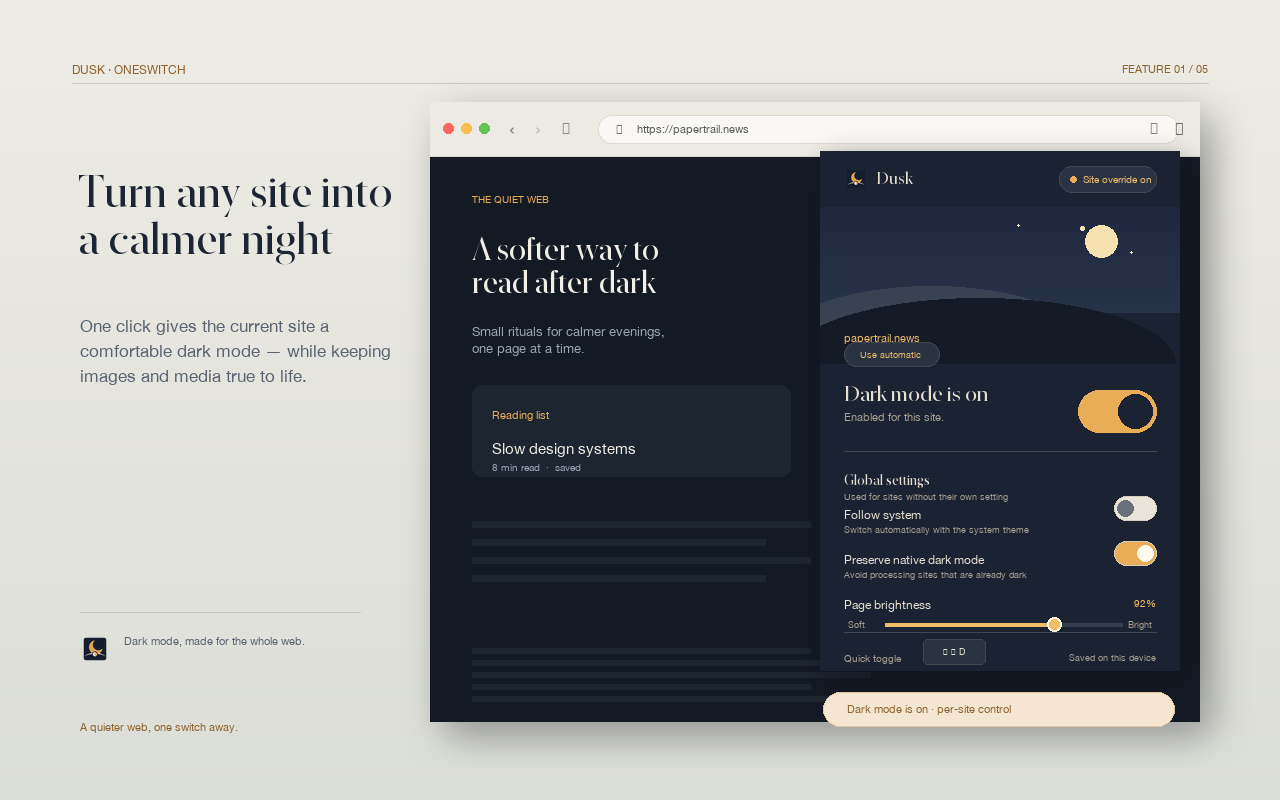
A page-level extension can give you a switch for the current site, a global website dark mode default, and a memory for the choices you make. In practice, the useful details are less about making every pixel black and more about preserving hierarchy:
- Darken bright page backgrounds and large reading surfaces.
- Keep text contrast high enough for long reading sessions.
- Protect images, video, maps, SVG, and document canvases from accidental inversion.
- Let a site follow the global setting, or opt out when its native theme is better.
Dusk follows that model. The current site can be toggled independently, while an optional global setting handles sites without a saved preference. The goal is a night mode that gets out of the way when you are looking at the content itself.
Start with a gentle default.
If you are new to dark mode for websites, begin with the sites you read most at night. Install Dusk, pin it to the Chrome toolbar, open a bright page, and toggle the current site. If the result feels too heavy, adjust the page brightness instead of making every page darker.
- Use a per-site setting for places where color or charts matter.
- Use global dark mode for ordinary articles, reference pages, and dashboards.
- Leave a site's native dark theme on when it already handles its own controls and media well.
This small amount of selectivity is usually more comfortable than forcing a single treatment on the entire web. It also gives you a way back: disable the current site or restore the global setting whenever a page looks wrong.
Finally, check what the extension can access.
A browser extension that changes webpages needs access to supported page content. That makes its privacy model important. Look for a clear explanation of permissions, whether page content leaves the browser, whether settings are stored locally, and whether the extension loads remote code.
Dusk is designed as a local-first dark mode extension: settings use Chrome's local storage, no account is required, and webpage visuals are processed in the browser for the effect. Read the security and privacy policy before installing any browser extension, and compare its claims with the permissions it requests.
Sources and next steps.
For the browser-level details, start with Google's own documentation. Then try a single website and keep the setting that feels comfortable rather than chasing a perfect universal filter.